
Prompt Track MCP
Watching technical tutorials on YouTube usually ends the same frustrating way. You pause the video, copy code off the screen by eye, alt-tab to your editor, realise your setup does not match the presenter's, and lose the thread entirely. Most video collateral is sitting there inert. Someone watches it, and that is the end of the transaction. Prompt Track changes that. It turns ordinary YouTube videos into structured, interactive courseware by attaching a timestamped sidecar of authored cues directly to the footage.
Prompt Track
A caption track for doing, not just watching.
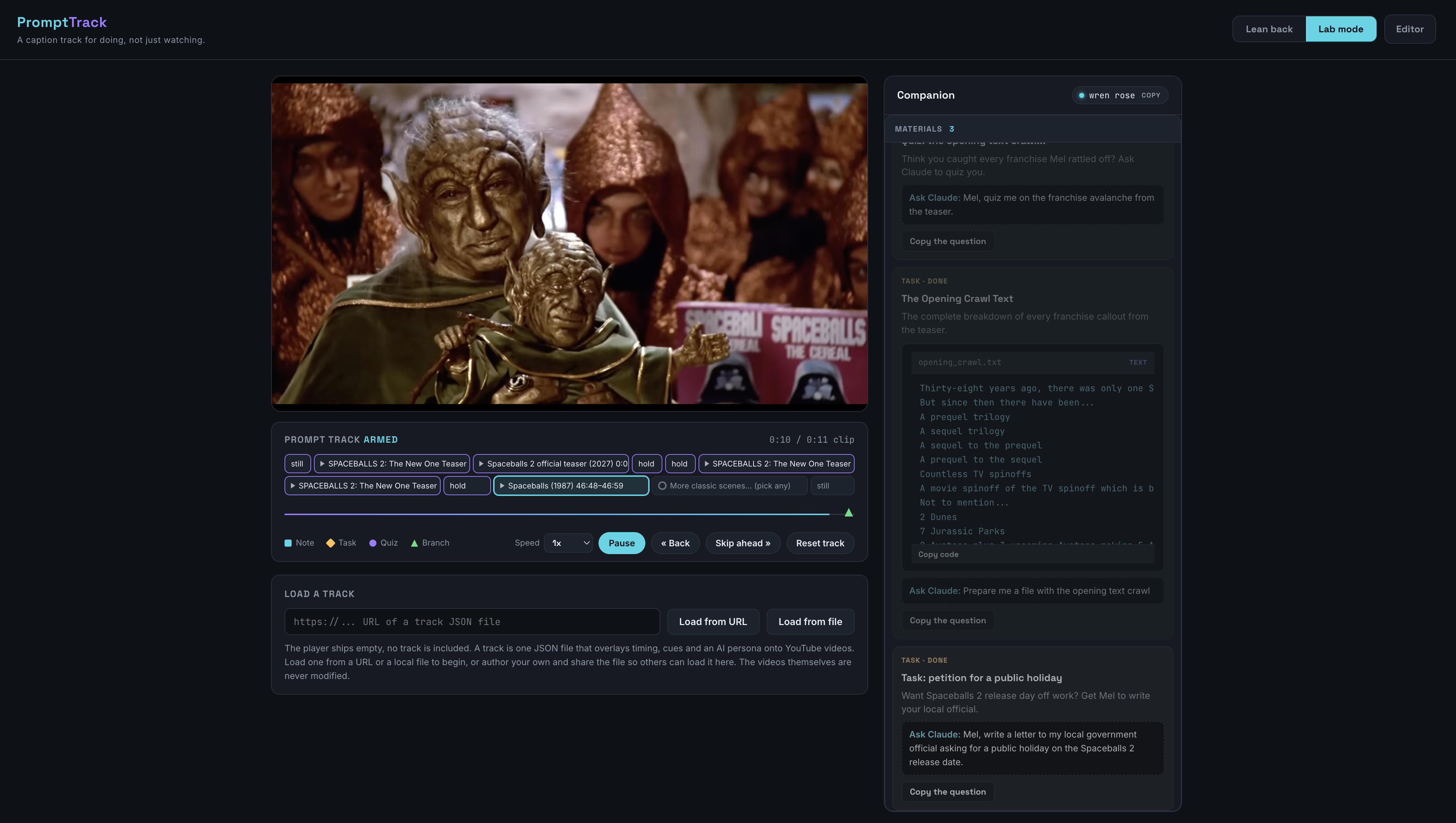
Prompt Track turns existing video into structured, interactive courseware. It attaches a timestamped sidecar of authored cues to ordinary YouTube videos, so the video pauses itself at moments you choose, hands the viewer the exact step, code, quiz or note you wrote for that moment, and lets them ask Claude about any of it. Claude knows precisely where they are in the video before it answers.
Install one file into Claude Desktop and open a browser tab. No API key, no Docker, no Node, no cloud account beyond the Claude Desktop login you already have.
Prefer to talk through setup with an AI?
If you prefer to converse with your instructions rather than just read through documentation, copy the text from the Interactive Setup & Usage Prompt and paste it into ChatGPT, Claude, Gemini, or any LLM of your choice. It acts as an interactive setup guide that will walk you through installation, configuration, and writing your first track step-by-step.
Why this exists
I built this to reimagine how the video collateral tech companies already own could be used to introduce the benefits of LLMs like Claude.
Most companies with a Developer Advocacy team are sitting on years of conference talks, product walkthroughs and tutorial series. That material is good. It is also inert. Someone watches it, and that is the end of the transaction.
MCP is having a moment, and it occurred to me that YouTube's own built-in AI is not quite enough if what you want is a staged process or a genuine course built from that video material. For that you need extra metadata. Quizzes. Content downloads. Checkpoints. Something that knows the difference between minute four and minute forty.
The clearest example is code. If a viewer is watching someone demonstrate a code example on screen, they do not want to copy it off the screen by eye. They want the actual code, in their own programming language, on their own machine, with their own paths already filled in. Prompt Track gives them exactly that, as a copyable artifact attached to the moment it appears.
Splice several videos together, add data, quizzes and notes, and a scattered playlist becomes an instructed course. The viewer watches, follows the process, and asks Claude about the content as they go. Claude answers grounded in what is on screen right now, not in a general impression of the topic.
It works for anything else too, which is why the demonstration track is about Spaceballs rather than a product tutorial. The mechanism does not care whether the subject is Kubernetes or Mel Brooks.
What it looks like in practice
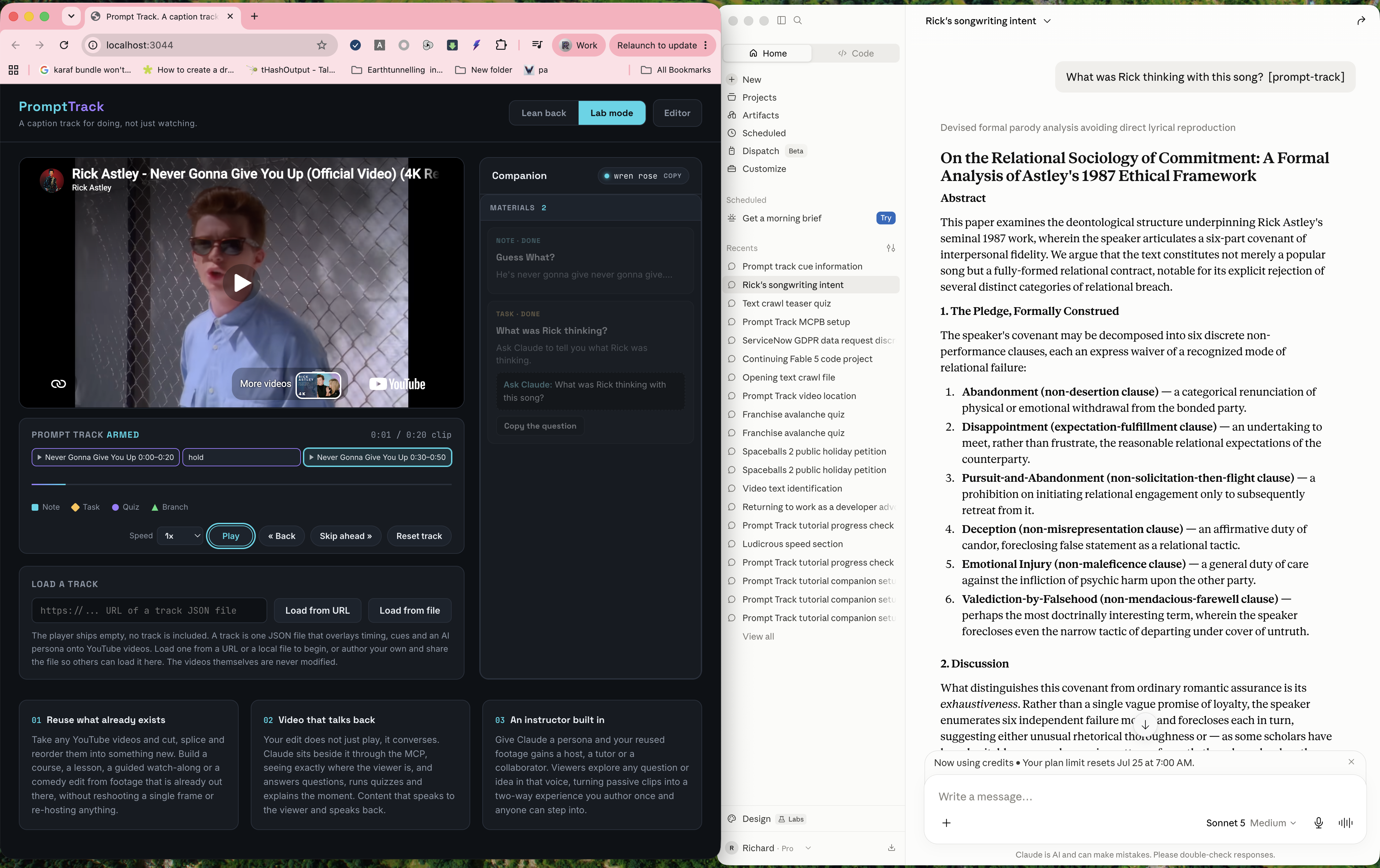
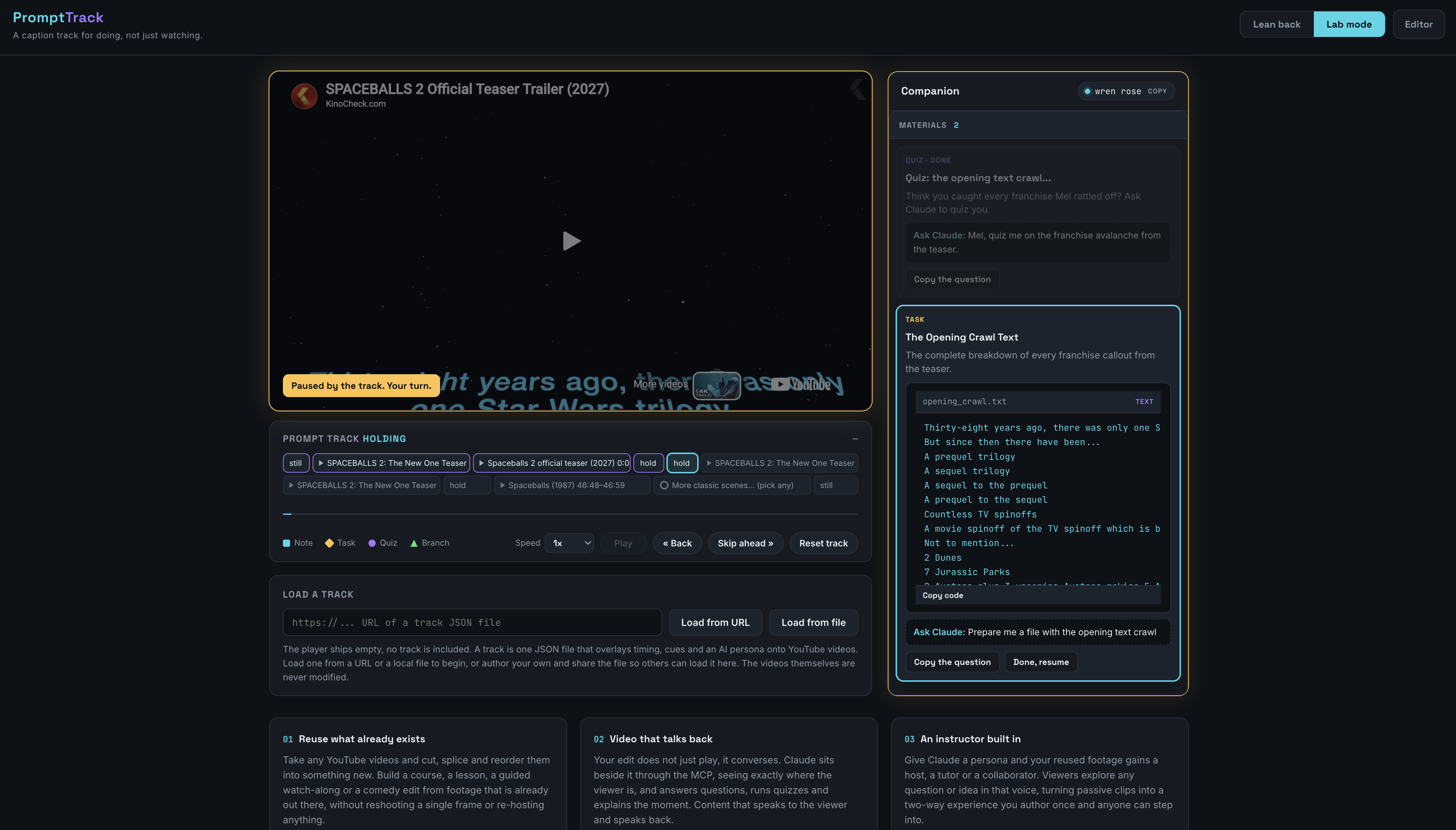
A viewer opens a browser tab and a Claude Desktop window, side by side. The video plays. At an authored moment it pauses itself and a card appears with a step to perform, some code to copy, a note, or a quiz. They do the thing. They ask Claude a question about it in plain language. Claude checks where they are, answers from the track's own ground truth, and resumes the video when they say they are done.
Nothing has to be set up between the two windows. No pairing, no codes, no configuration. Claude and the player page are already talking to the same local server.
Install
The easy way: a Claude Desktop extension
One file. No terminal.
- Download the latest
prompt-track.mcpbfrom the releases page. - Right-click the prompt-track.mcpb file and choose to open it with Claude Desktop.
- Click Install.
- Open http://localhost:3044 in your browser.
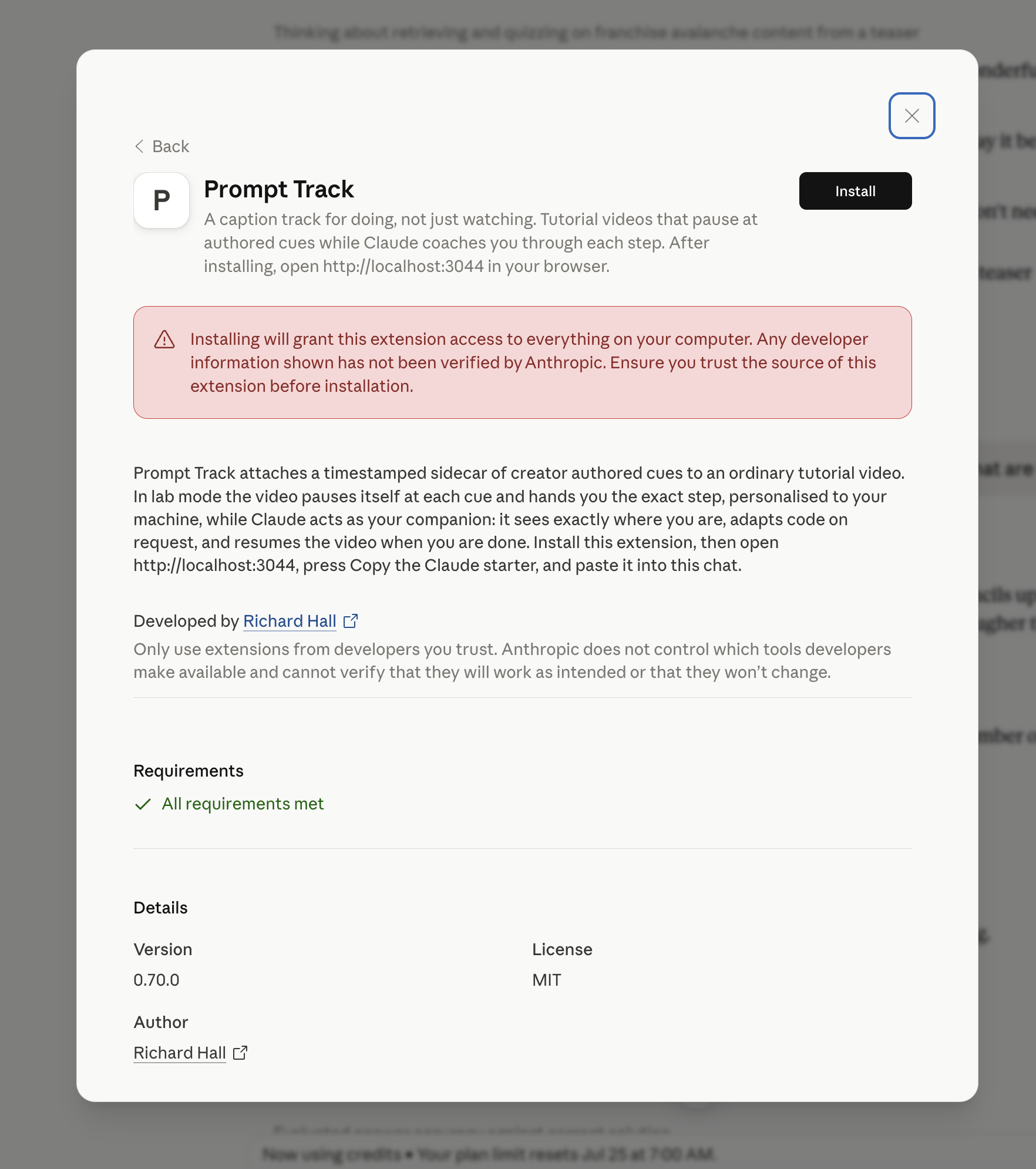
That is the entire setup. Claude Desktop runs the server itself using its own bundled runtime, so the player page and the Claude tools come alive together whenever Claude Desktop is open.
Requirements: Claude Desktop, any plan including free. Nothing else.
If port 3044 is already in use on your machine, change it in the extension's settings in Claude Desktop.
Self-hosting with Docker
There is a Docker path for running Prompt Track on a shared machine, or for working on the code. It needs a claude_desktop_config.json entry and the container running before Claude Desktop starts. See CONTRIBUTING.md.
Most people want the extension above.
Using the player
Open http://localhost:3044 and press play.
Two calibration questions appear the first time. Which machine you are on, and how comfortable you are with a terminal. Both shape what the cue cards show you and how much Claude explains. They take one click each.
Two modes. Lab mode pauses at every cue and is the point of the tool. Lean back plays straight through for a rewatch.
The controls under the video: play and pause, Back to the previous cue, Skip ahead to the next, Reset track, and a speed control. The rail below shows cue markers you can click to jump.
Side by side with Claude arranges your screen: the player takes the right half and the server makes a best effort to snap Claude Desktop to the left. On a Mac this asks once for permission to move windows, and if you decline the page shows the manual shortcut instead.
The page name in the top corner is two words, like "fox amber". It only matters if you open several player tabs at once, in which case Claude will ask which one you mean.
Materials collect in the sidebar as you go. Code and notes from earlier cues stay available, so you can scroll back to a command from three steps ago without rewinding the video.
Asking Claude
Ask in plain language in the Claude window:
- "What step am I on?"
- "Why does this command use that flag?"
- "Give me this in Python instead."
- "Take me to the section about authentication."
- "Show me that bit again."
- "Quiz me on what we just covered."
Claude checks your exact position before answering, knows the whole track, and can drive the video: pause it, resume it, jump to a named section, or play a specific clip and bring you back afterwards.
Tell Claude a step is done and it resumes the video. Or press the button on the page. Both work.
Writing a track
A track is a single JSON file. The player contains no content of its own.
The editor
There is an authoring tool at http://localhost:3044/editor.html, linked from the player. It validates as you type, shows the timeline as a tree, and gives you forms for the fiddly parts while leaving the raw JSON editable at any moment. The JSON is always the source of truth, so you can use the forms where they help and drop into the text whenever they get in the way. There is also a Load Example button, which is worth pressing at least once.
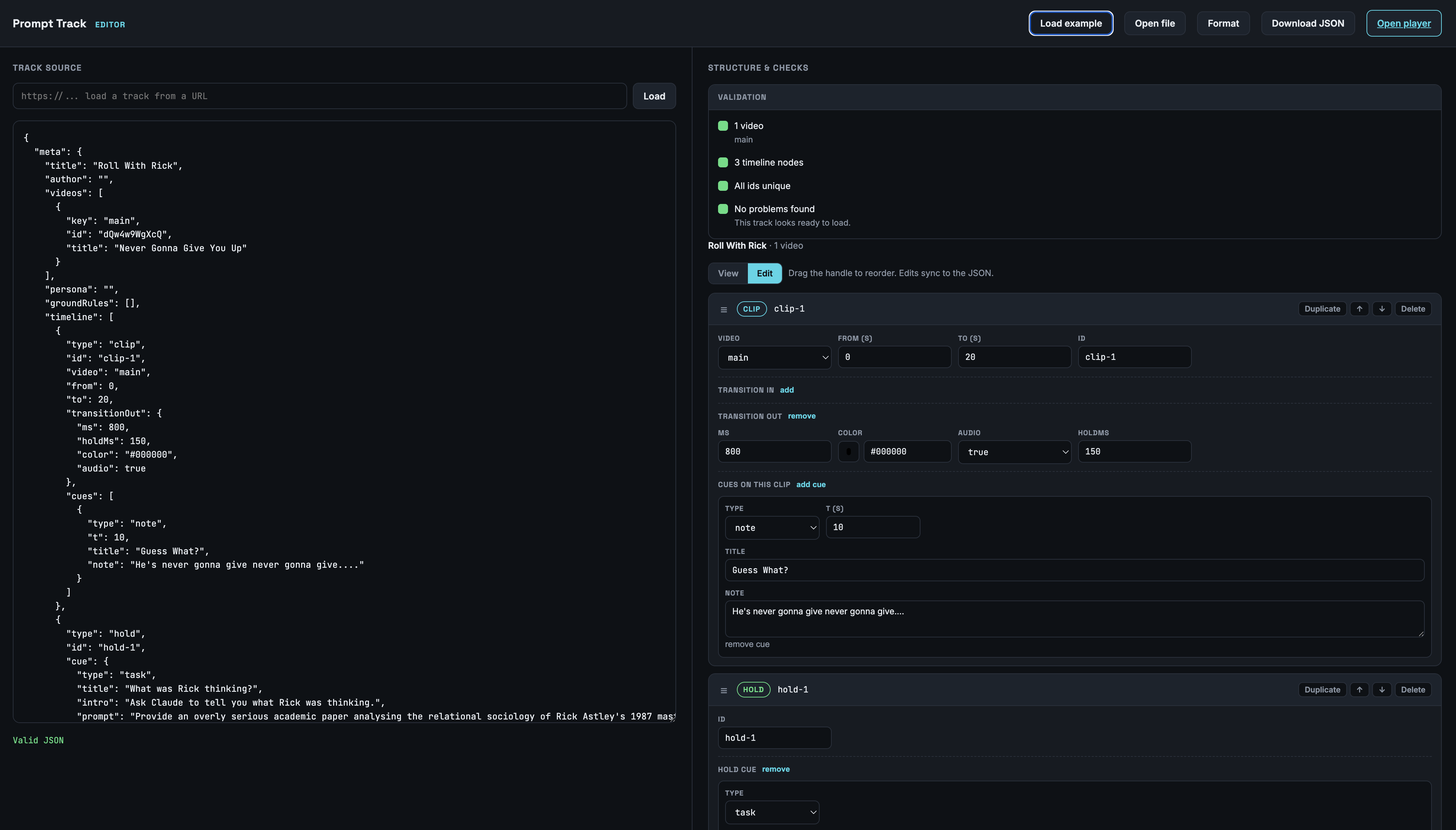
Loading a track
Three ways:
- Drop a
.jsonfile into thetracks/folder and load it as/tracks/my-track.json - Load from any public URL using the loader on the player page
- Load from a local file with the file picker
A real track you can run
The repository ships with tracks/spaceballs2.json, a
complete working track built around the Spaceballs 2 teaser. Load it at
/tracks/spaceballs2.json, or paste this straight into the URL loader:
https://raw.githubusercontent.com/rilhia/prompt-track-mcp/main/tracks/spaceballs2.json
It is worth reading as a reference, because it uses nearly everything in this document against real footage:
- Three videos cut together, two teasers and the 1987 original, switched between mid-track
- Four node types:
stilltitle cards top and tail it,clipfor the footage,holdfor the two set pieces, and abranchfor the optional scenes - All four cue types, including a long
contextcue carrying the teaser's entire opening crawl as ground truth - A nine option
multibranch of classic scenes, each with its own nested timeline, which the viewer can dip into in any order or skip entirely - A persona and ground rules that hold Mel Brooks in character while forbidding him from inventing facts
- A hidden
promptthat interviews the viewer: the public holiday task asks five questions one at a time before writing anything, which is the pattern to copy when a task needs real input rather than placeholders - A task that hands back a file, built from text stored in a context cue elsewhere in the track
The quiz cue is the clearest illustration of the suggestion versus prompt
split. The viewer sees "quiz me on the franchise avalanche". What Claude actually
receives is an instruction to ask how many questions they want and at what
difficulty, wait for the answer, then generate a fresh quiz one question at a
time, keeping score and staying in character throughout. None of that is on the
card.
Track schema reference
Everything below is what the player and the MCP server actually read. Anything not listed here is ignored.
Top level
{
  "meta": { }
}
| Field | Type | Required | Notes |
|---|---|---|---|
meta |
object | yes | Everything lives under here |
A legacy flat cues array at the top level is still honoured and merged with cues found in the timeline, but new tracks should not use it.
meta
"meta": {
  "title": "Getting started with MyTool",
  "videos": [ ],
  "timeline": [ ],
  "persona": "How Claude should speak for this track.",
  "groundRules": [ ],
  "references": [ ],
  "variables": [ ]
}
| Field | Type | Required | Notes |
|---|---|---|---|
title |
string | yes | Shown on the page and reported to Claude |
videos |
array of Video | yes | At least one |
timeline |
array of Node | yes | The tree. See below |
persona |
string | no | A character Claude speaks as for the whole session |
groundRules |
array of string | no | Constraints passed to Claude verbatim |
references |
array of Reference | no | Track-wide sources |
variables |
array of Variable | no | Values asked of the viewer, substituted into artifacts |
author |
string | no | Shown in the editor. Not used by the player |
version |
string | no | Conventional. Not read by anything |
Video
{ "key": "main", "id": "iXBLxUWwoMY", "title": "The walkthrough" }
| Field | Type | Required | Notes |
|---|---|---|---|
key |
string | no | How nodes refer to this video. Defaults to video0, video1 and so on by position |
id |
string | yes | A bare 11 character YouTube ID or a full URL in any shape |
title |
string | no | Shown when the player switches video |
The first video in the array is the main one. Any node omitting video uses it.
The video must allow embedding. Your own uploads do by default.
Timeline nodes
meta.timeline is an array of nodes, and it is a tree rather than a flat list. Branch options contain their own timeline arrays, which may themselves contain branches, to any depth.
Five node types: clip, branch, hold, still, end.
If type is omitted it is inferred: a node with options is a branch, a node with video is a clip, a node with end is an end, otherwise a clip. Always write type explicitly. The inference exists for older tracks.
Every node may carry an id. If omitted, one is generated from the node's position in the tree. Supply your own for anything you want to refer to later.
clip
Plays a section of a video. The workhorse node.
{
  "type": "clip",
  "id": "intro",
  "video": "main",
  "from": 0,
  "to": 240,
  "transitionIn":  { "ms": 450, "color": "#000" },
  "transitionOut": { "ms": 450, "color": "#000", "holdMs": 200 },
  "cues": [ ]
}
| Field | Type | Default | Notes |
|---|---|---|---|
video |
string | main video key | Which video to play |
from |
number | 0 |
Start, in seconds, in the source video |
to |
number | 0 |
End, in seconds, in the source video |
transitionIn |
Transition | none | Fade in from a colour when this clip starts |
transitionOut |
Transition | none | Fade out before the clip ends |
cues |
array of Cue | [] |
Timestamped cues that fire during this clip |
branch
Pauses playback and offers the viewer a choice. Each option carries its own nested timeline, which is what makes the structure a tree.
{
  "type": "branch",
  "id": "pick-a-path",
  "title": "Which language?",
  "intro": "Pick the one you work in.",
  "select": "single",
  "require": "required",
  "options": [
    {
      "label": "Python",
      "timeline": [
        { "type": "clip", "video": "main", "from": 300, "to": 480, "cues": [] }
      ]
    },
    {
      "label": "JavaScript",
      "timeline": [
        { "type": "clip", "video": "main", "from": 500, "to": 700, "cues": [] },
        { "type": "hold", "cue": { "type": "quiz", "title": "Check yourself" } }
      ]
    }
  ]
}
| Field | Type | Default | Notes |
|---|---|---|---|
title |
string | "" |
Heading on the choice card |
intro |
string | "" |
Body text on the choice card |
select |
"single" or "multi" |
"multi" |
See below |
require |
"required" or "optional" |
"optional" |
Whether the viewer must watch at least one option before proceeding |
options |
array of Option | [] |
The choices |
Option:
| Field | Type | Default | Notes |
|---|---|---|---|
label |
string | "Option N" |
Button text, and what go_to matches against |
timeline |
array of Node | [] |
A full nested timeline. Any node type, including further branches |
select semantics:
singlecommits. The viewer picks one option, watches it, and the branch is finished. Playback continues after the branch.multireturns. When an option's timeline ends, the viewer comes back to the choice card with that option ticked, and can watch another or press Proceed.
require semantics:
optionalshows Proceed immediatelyrequiredshows Proceed only after at least one option has been watched
hold
A pause between clips with no video of its own. It exists purely to present one cue in the seam, most often a quiz or a task that does not belong to any particular moment in the footage.
{
  "type": "hold",
  "id": "midpoint-quiz",
  "bg": "#000",
  "cue": {
    "type": "quiz",
    "title": "Before we go on",
    "intro": "Five questions on what we just covered.",
    "prompt": "Quiz the viewer on sections one to three. One question at a time.",
    "suggestion": "Quiz me on what we just covered"
  }
}
| Field | Type | Default | Notes |
|---|---|---|---|
bg |
string | previous frame | Background colour while the hold is showing |
cue |
Cue | none | A single cue object, not an array. It needs no t |
The screen shows whatever the previous clip faded to. The hold advances when the viewer resolves the cue.
still
Shows an image in the video window for a set time. Useful for title cards, diagrams and endings.
{
  "type": "still",
  "id": "title-card",
  "image": "https://example.com/title.png",
  "hold": 5,
  "fit": "cover",
  "bg": "#000",
  "title": "Part Two",
  "caption": "Authentication",
  "transitionIn": { "ms": 600 },
  "transitionOut": { "ms": 600 }
}
| Field | Type | Default | Notes |
|---|---|---|---|
image |
string | "" |
A publicly reachable image URL |
hold |
number | 4 |
Seconds to show it. Also accepted as holdSeconds |
fit |
"cover", "contain" or "fill" |
"cover" |
cover fills and crops, contain letterboxes, fill stretches |
bg |
string | "#000" |
Backdrop behind the image |
title |
string | "" |
Overlaid heading |
caption |
string | "" |
Overlaid caption |
transitionIn / transitionOut |
Transition | none | As for clips |
A still that is the last node in the whole timeline stays on screen at the end rather than clearing, so a track can finish on a card.
end
Stops the track.
{ "type": "end" }
No fields. Useful inside a branch option to end the track down one path.
Transition
Used by clip and still as transitionIn and transitionOut.
{ "ms": 450, "color": "#000", "audio": true, "holdMs": 200, "delayMs": 100 }
| Field | Type | Default | Notes |
|---|---|---|---|
ms |
number | 450 |
Fade duration in milliseconds |
color |
string | "#000" |
Colour to fade to or from |
audio |
boolean | true |
Fade the audio alongside the picture |
enabled |
boolean | true |
Set false to disable this transition |
holdMs |
number | 0 |
Out only. Stay dark this long after fading out |
delayMs |
number | 0 |
In only. Wait this long before fading in |
Cue
Cues live in a clip's cues array, or as a hold's single cue.
{
  "id": "cue-1",
  "t": 132,
  "type": "task",
  "title": "Start the stack",
  "intro": "What the viewer sees when the video pauses here.",
  "deeper": "The explanation held in reserve for anyone who asks why.",
  "suggestion": "Help me get this running",
  "prompt": "Walk the viewer through starting the stack. Do not give them the answer outright.",
  "artifacts": [ ],
  "references": [ ]
}
| Field | Type | Required | Notes |
|---|---|---|---|
id |
string | no | Generated from position if omitted. Must be unique across the track |
t |
number | for clip cues | Seconds in the source video. Hold cues have no t |
type |
string | yes | See table below |
title |
string | no | Card heading |
intro |
string | no | Card body |
note |
string | no | Alias for intro. Used if intro is absent |
deeper |
string | no | Extra explanation, revealed on click |
suggestion |
string | no | The question the viewer is shown and can copy to Claude |
copyText |
string | no | What actually gets copied, if different from suggestion |
prompt |
string | no | Hidden authored instructions Claude runs. See below |
artifacts |
array of Artifact | no | Code the viewer can copy |
references |
array of Reference | no | Sources for this cue specifically |
topics |
array of string | no | Context cues only. Keywords for navigation by name |
dwell |
number | no | Note cues only. Seconds the caption stays up. Default 6 |
hideOnVideo |
boolean | no | Note cues only. Suppress the on-video caption |
video |
string | no | Set automatically from the parent clip. Do not write it yourself |
Cue types
| Type | Pauses? | What it does |
|---|---|---|
task |
Yes | A step the viewer performs. Takes the floor until they press Done or Claude resumes |
quiz |
Yes | Makes a quiz available. Claude generates it live from prompt |
note |
No | A passive caption over the video for dwell seconds |
context |
No | A silent section marker. Never shown. Read by Claude for grounding and navigation |
do is accepted as an alias for task and normalised on load. Use task in new tracks.
Note cues can put their text in either intro or note. Both work, and intro wins if you supply both.
There is no checkpoint type. Older documentation mentioned one and it was never implemented.
suggestion versus prompt
Two different fields doing two different jobs, and the split is the point.
suggestionis short and natural. It is what the viewer reads on the card and copies into Claudepromptis the real instruction. Claude retrieves it throughactivate_promptand follows it
So the viewer sends "quiz me on what we just covered" and gets whatever you actually specified: difficulty, scope, format, how to handle a wrong answer, how many questions. They never see it.
When the viewer copies the question, the player appends a [prompt-track] marker so Claude knows to look for the hidden prompt rather than answering the plain wording.
Artifact
Code the viewer can copy, attached to a cue.
"artifacts": [
  {
    "label": "Start the containers",
    "language": "bash",
    "filename": "start.sh",
    "code": "cd {{PROJECT_DIR}} && docker compose up -d",
    "platforms": ["mac", "linux"],
    "template": true
  }
]
| Field | Type | Default | Notes |
|---|---|---|---|
code |
string | "" |
The code itself |
label |
string | none | Shown above the block |
language |
string | none | For syntax display |
filename |
string | none | Suggested filename |
platforms |
array of string | all | mac, windows, linux or any. Filtered against the viewer's answer |
template |
boolean | true |
Set false to leave {{PLACEHOLDER}} tokens untouched |
Platform filtering means one cue can serve every viewer:
"artifacts": [
  { "code": "brew install mytool",   "platforms": ["mac"] },
  { "code": "winget install mytool", "platforms": ["windows"] },
  { "code": "apt install mytool",    "platforms": ["linux"] }
]
Legacy object form is still read, and is the shorthand for a single artifact:
"artifacts": { "mac": "brew install x", "windows": "winget install x", "any": "..." }
Variable
Declared in meta.variables, asked of the viewer once, then substituted into every {{PLACEHOLDER}} in every artifact.
"variables": [
  {
    "name": "PROJECT_DIR",
    "prompt": "Where do you keep your projects?",
    "default": "~/projects",
    "pattern": "^[~/].*"
  }
]
| Field | Type | Required | Notes |
|---|---|---|---|
name |
string | yes | The token name. PROJECT_DIR matches {{PROJECT_DIR}} |
prompt |
string | no | The question shown to the viewer |
default |
string | no | Prefilled, and fine to keep |
pattern |
string | no | A regular expression the answer must match |
Claude receives the answers too, so when the viewer asks it to adapt a snippet it works from the same substituted version they are looking at.
Reference
Author-vetted sources, either track-wide in meta.references or on an individual cue.
"references": [
  { "url": "https://example.com/spec", "title": "The specification", "note": "Section 4 covers this" }
]
| Field | Type | Required | Notes |
|---|---|---|---|
url |
string | yes | Entries without a url are dropped |
title |
string | no | Display name |
note |
string | no | Why it is relevant |
A bare string is accepted and treated as a url.
When a viewer asks something these could answer, Claude reads them with its own web browsing and cites them rather than answering from general knowledge.
A complete example
This example will not play. The video IDs, image and documentation URLs are illustrative, so treat it as pseudo-code showing the shape rather than something to load. For a track that actually runs, use
tracks/spaceballs2.jsonabove, or open the editor and press Load Example. 🥚
{
  "meta": {
    "title": "Deploying MyTool",
    "videos": [
      { "key": "main", "id": "dQw4w9WgXcQ", "title": "The walkthrough" },
      { "key": "deep", "id": "oHg5SJYRHA0", "title": "The deep dive" }
    ],
    "persona": "A patient staff engineer who has deployed this a hundred times.",
    "groundRules": [
      "Only state facts present in this track.",
      "The viewer types every command themselves."
    ],
    "variables": [
      { "name": "PROJECT_DIR", "prompt": "Where do you keep your projects?", "default": "~/projects" }
    ],
    "references": [
      { "url": "https://example.com/docs", "title": "Official docs" }
    ],
    "timeline": [
      {
        "type": "still",
        "image": "https://example.com/title.png",
        "hold": 4,
        "title": "Deploying MyTool"
      },
      {
        "type": "clip",
        "id": "setup",
        "video": "main",
        "from": 0,
        "to": 240,
        "transitionIn": { "ms": 600 },
        "cues": [
          {
            "id": "sec-setup",
            "t": 5,
            "type": "context",
            "title": "Section: initial setup",
            "topics": ["install", "prerequisites"]
          },
          {
            "id": "install",
            "t": 132,
            "type": "task",
            "title": "Install the CLI",
            "intro": "Run this in your terminal, then press Done.",
            "deeper": "The installer also registers a shell completion script.",
            "suggestion": "Explain what this installer is doing",
            "prompt": "Explain the installer step by step, at the viewer's stated comfort level.",
            "artifacts": [
              { "code": "brew install mytool",   "platforms": ["mac"] },
              { "code": "winget install mytool", "platforms": ["windows"] }
            ]
          },
          {
            "id": "note-1",
            "t": 200,
            "type": "note",
            "intro": "Note the version number here, it matters later.",
            "dwell": 8
          }
        ]
      },
      {
        "type": "hold",
        "id": "checkpoint-quiz",
        "cue": {
          "type": "quiz",
          "title": "Quick check",
          "intro": "Three questions before we move on.",
          "suggestion": "Quiz me on the setup",
          "prompt": "Three multiple choice questions on installation and prerequisites, one at a time."
        }
      },
      {
        "type": "branch",
        "id": "which-path",
        "title": "How deep do you want to go?",
        "select": "single",
        "require": "required",
        "options": [
          {
            "label": "Just deploy it",
            "timeline": [
              { "type": "clip", "video": "main", "from": 300, "to": 520, "cues": [] }
            ]
          },
          {
            "label": "Show me the internals",
            "timeline": [
              { "type": "clip", "video": "deep", "from": 0, "to": 400, "cues": [] },
              { "type": "clip", "video": "main", "from": 300, "to": 520, "cues": [] }
            ]
          }
        ]
      },
      { "type": "end" }
    ]
  }
}
Things that catch people
Cue timestamps are positions in the source video, not in your edited timeline. A clip running from: 300 to to: 520 fires a cue written as "t": 400. If your track cuts around a video, cue times will not run in ascending order across the file. That is correct.
A cue timed outside its clip's range never fires. "t": 90 inside a clip running 300 to 520 is unreachable. The editor flags this.
Context cues are the cheapest quality win. They never appear on screen, cost nothing to write, and are the difference between Claude knowing what is being discussed and guessing. Navigation by name also depends on them.
Cue ids must be unique across the whole track. Duplicates cause behaviour that looks like player bugs. The player warns at load time.
Branch options are full timelines. They are not just jump targets. Anything you can put at the top level goes inside an option, including further branches.
The tools Claude gets
| Tool | What it does |
|---|---|
get_state |
The current moment: active cue in full, position, what is done, the viewer's calibration and variables, and the persona to speak in |
get_track |
The entire track: metadata, ground rules, every cue, all code |
get_references |
Every author-vetted source in the track |
activate_prompt |
Retrieves the hidden authored prompt behind a task or quiz |
resume_video |
Resumes playback, releasing the active cue |
pause_video |
Pauses playback |
seek_video |
Jumps to a time, optionally in another video of the track |
play_clip |
Plays a bounded clip, then returns the viewer or pauses |
go_to |
Navigates by name rather than by number. "The bit about editing" |
Every tool takes an optional session argument, the two word page name, needed only when several player tabs are open. With one open, Claude targets it automatically.
The design principle throughout: the page delivers the authored content and controls the video, and Claude answers questions on demand, grounded in get_state before every answer. Nothing listens, nothing loops, nothing needs pairing.
How it fits together
Browser tab <--WebSocket--> prompt-track server <--MCP--> Claude Desktop
One process does both jobs: it speaks MCP to Claude Desktop over stdio and serves the player page over HTTP. Claude Desktop launches it and runs it on its own bundled Node runtime.
Every browser tab is its own session with its own state and history. Several people can use one server at once. The server also exposes the same MCP over Streamable HTTP at /mcp, so the identical codebase could be hosted publicly and added to Claude as a custom connector with no code changes.
Troubleshooting
Claude shows no prompt-track tools. Check the extension is enabled in Claude Desktop under Settings, Extensions. If you have just installed it, fully quit Claude Desktop (Cmd+Q on Mac, not just closing the window) and reopen it.
Claude says no player page is open. The tab was closed or refreshed. Open http://localhost:3044 and ask again.
Claude asks which page you mean. More than one player tab is open. Each shows its two word name at the top, just tell Claude that name.
The video pane says refused to connect. A privacy extension or ad blocker is blocking YouTube embeds. The player already uses the privacy-enhanced youtube-nocookie domain, which most blockers allow. If yours still objects, allow this site in the extension, or test in a private window.
The video never loads and nothing happens. The YouTube iframe API is being blocked. The page shows a warning after six seconds if so.
Only some tools show up in Claude. In Claude Desktop's connector menu, set tool access to "Tools already loaded" rather than "Load tools when needed".
A cue never fires. Check its t against the clip's from and to. A cue timed outside its clip's range will never be reached. The editor flags this.
Port 3044 is in use. Change it in the extension's settings in Claude Desktop.
Working on the code
CONTRIBUTING.md covers the layout, the build, the tests, and the handful of rules that are not obvious from any single file.
Every source file opens with a header comment explaining its role and how it relates to the others. public/index.html describes the four systems inside it and is the one to read first if you are changing the player.
npm install
npm start              # development, http://localhost:3044
node build-mcpb.mjs    # produces dist/prompt-track.mcpb
License
MIT. If you build a track for a real tutorial, or a real anything, I would genuinely love to see it.